Compact Pro for Classic Macintosh File Uploads
TLDR
Try Compact Pro instead of Stuffit for sharing files with other users of vintage Macs – you might be surprised.
It is useful because you can create self extracting files protected from the ravages of the internet and you don’t need to worry about what compression software, or realistically, what hardware or OS version the recipient is using as the single format is extremely broadly compatible with Systems from 4.2 to Mac OS 9.2.2.
Macintosh Files
Classic Mac OS (System versions 9.2.2 and older) used a file format that is a bit different to what is used on most systems. Each file has two forks, a data fork, which contains binary data similar to any normal Windows / DOS / Linux / CP/M, and a second resource fork, that contains structured data called resources. Resources can be anything from pictures and sounds, to icons and even application code.
The Problem
A major issue with working with vintage Macs is that if you move a file with a resource fork onto a drive formatted as FAT or NTFS or most disk formats, including web servers, the resources are stripped from the file, an irrecoverable disaster as most files have all of the important information in resources.
The Solution
The common method to solve this issue is to process your files and convert them into a data fork only file, that can be later converted back to match the original files. Common formats that just do this are MacBinary (.bin), AppleSingle, and AppleDouble. BinHex (.hqx) is a format designed to allow the transmission of files through protocols that might otherwise corrupt, I think by misinterpreting parts of the file and making well meaning changes (Versions of Fetch and some web browsers cause this issue to files that aren’t converted to BinHex or MacBinary etc.). Additionally, it is possible to use compression formats such as the Stuffit (.sit / .sitx) compression format and Compact Pro format (.cpt) as these do not have any important data in the resource fork.
The Complication
Most vintage Macintosh users seem to have settled on using Stuffit Expander as their main decompression tool in recent past, and I assume Drop Stuff as their main compression utility. This is interesting as it wasn’t always the case with these tools becoming more popular in the late 90s and early 2000s, likely partly because older versions of Stuffit compatible software tended to be paid software.
My frustration with everyone using Stuffit, is that there are effectively three Stuffit formats – Versions 1 – 4 (.sit), Versions 5 – 6 (still .sit, but not fully compatible) and Version 7+ (.sitx). Version 3.5 is required to work on System 6 and Macs with a 68000 processor, but this version wont open “.sit” files made with Stuffit 5. Version 5.5 seems to be the last version to work on 68k Macs and opens most files, but requires System 7.0 or 7.1 (I forget which) and a 68020. I have had better luck opening some partially corrupted files using 5.5 over 5.0 – I suspect it does some simple repairs for common issues. “.sitx” files require Stuffit Expander 7 which does not run on 68k Macs. Further more, it is possible to set the level of compression, with higher levels of compression taking longer to expand, hugely so on older computers. Some files will crash some versions of Expander, but not others so you usually end up needing multiple versions (4.5 and 5.5 perhaps) installed.
The common mistake that people make is to compress a file, intended for use on an 8MHz computer from the 1980s and running System 6, using the high compression mode and saving in the later (requiring version 5 or later) format making the files inaccessible on original hardware.
My Preferred Solution
In my household growing up in the 90s, we tended to use the compression tool “Compact Pro”, which was ShareWare, but fully functional without registration. This worked well and let you save archives which can be moved between computers, even stored on servers and PCs, and later extracted on another Mac running Compact Pro. Compact Pro has minimum requirements of a Macintosh Plus running System 4.2 and will work just fine on a G4 running Mac OS 9.2.2.
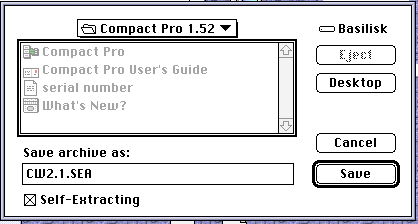
The next huge advantage is that in the save dialogue box, there is a “Make Self Extracting” checkbox. If you check this, the saved file is an application. Running this application will extract the compressed files without even needing to have a copy of Compact Pro on the destination computer – the complication? An application needs resources… never fear – there is a menu option that allows you to convert any file, including these Self Extracting Archives (.sea) into a BinHex (.hqx) file, which is server, Windows, Linux, FTP, http etc. safe. Additionally, almost any archive software including StuffIt will convert the file back into the application from the BinHex so you’re not excluding StuffIt users (note that for many years Stuffit Expander came on Apple Mac OS installer CDs and was installed by default). An extra bonus is that some web browsers and FTP clients automatically convert BinHex files.
By processing a file like this, it will be possible for it to be worked with by the destination user, regardless of what OS they are running as long as it is newer than System 4.2, there are fewer format issues, fewer unexpected, Stuffit Expander just quitting when you drop the file on it, or throwing a mystery error, the files work on anything from a 68000 to a G4.
The only disadvantage is that there is a small overhead for the application / extraction code and so if a file barely compresses (such as sound or a JPEG image) the resulting file might end up being slightly larger than the original, or if you are trying to minimise size to the last few kB.
How To
First download Compact Pro 1.52 onto the computer running Mac OS (real or emulated) that you want to use to compress your files. It can be found here.

Once installed, follow these steps to generate a self extracting archive stored as a BinHex.
- Launch Compact Pro and it will open showing a new untitled archive. You can add files and folders here.
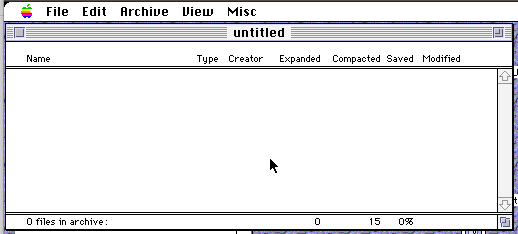
- You can go to the “Archive” menu to either create new folders (“New Folder…”), or directly “Add Files…” and folders.
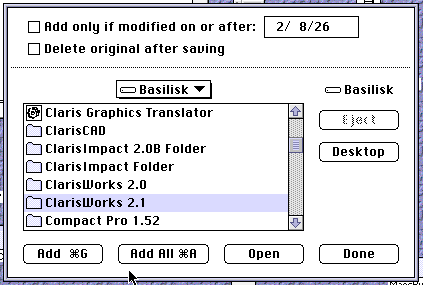
You can chose to add all files at the current location, or just what is selected. You can keep adding things until you have finished, and then click “Done”. You can also choose to “Add only if modified on or after” which is handy if you have a file full of many documents and, for example, want to add all the ones you’ve modified today.
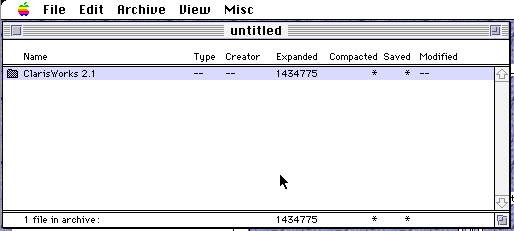
Now that we have added our files, we can navigate and modify things if we like, but I’m going straight to “Save As…” in the File menu. I have selected the “Self-Extracting” checkbox and named the file “CW2.1.SEA”. I then click “Save” as usual, after navigating to where I want to save my Self Extracting Archive.
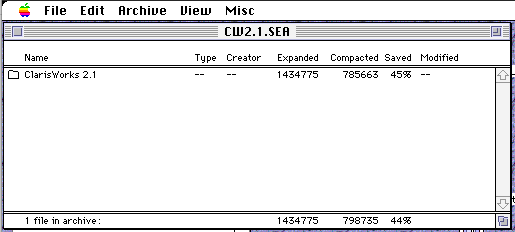
After saving, the archive window updates to show details of what filesize savings we made. In my case, I saved 45% of the original size of the files. Woo!
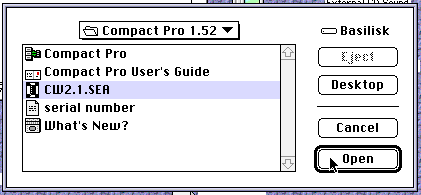
Keep in mind that at this point we can move the file between Macs on a Mac formatted disk, but, because we specifically saved as a self extracting archive, to retain that feature when moving via the internet or a PC, we need to convert the file to a BinHex. This is done with the “Convert to BinHex4…” option in the Misc menu. Select your file and click Open.
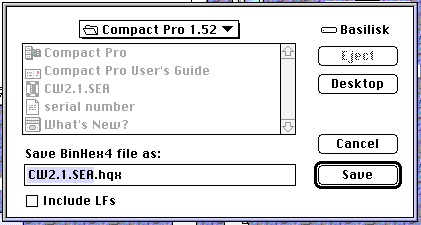
You will be asked where to save the file. I don’t tend to check “Include LFs” (Line Feeds) – Let me know if it is something that is needed in a specific situation using my contact form under the “About” menu on this page.
That’s it – you now have a .hqx file that is safe to move on to a PC floppy disk, transfer over FTP to a PC, upload to Macintosh Garden etc. The end user just needs to open the file with something that converts back from BinHex, which as mentioned could be one of many programs including Stuffit Expander, and then double click the resultant file and the contents will be extracted. One of the reasons I like this method is that the BinHex is just a plain text file but once converted back, the Self Extracting Archive retains all its file type and file creator characteristics.
NOTE – If you do make a mistake and forget to convert your Self Extracting Archive into a BinHex and the resources are removed during the transfer process, the resultant file will still be a valid Compact Pro archive! This means that at the destination, the damaged file can still be expanded by manually opening it in Compact Pro, or if I remember, a registered copy of Stuffit Expander / Stuffit Deluxe.