Mac OS 8.6 for Unsupported Systems

Mac OS 8.6 for Unsupported Systems

Apple released the early G4s, Yikes and Sawtooth, with special, updated versions of Mac OS 8.6. I’m not sure if people are aware, but @LightBulbFun did some excellent work here to produce a modified version of the Mac OS ROM file, that goes in the System Folder, to enable this special version of 8.6 to be booted on unsupported machines including the Pismo, Gigabit Ethernet G4, some DA G4s, perhaps some extra iMacs that are not usually supported, some iBooks, probably the Cube and perhaps some early PowerBook G4s? The requirements are that the machine needs to have an old enough processor and be similar to an officially supported machine. Machines with the G4 7450 processor and newer are not immediately supported without some further fiddling in OpenFirmware.

Issue 1 – 20240221

Note – a bug in issue 1 prevented the Restore functionality from working.

I decided to take this modified ROM file and wrap it up in a modified version of the Mac OS 8.6 installer CD. I’m not going to lie, while most of it was easy, getting the Installer application on the CD to actually install the modified file was way more tricky than I expected. Yes I tried replacing the file in the two tomes it appeared in. That lost me about 5 hours of my day. Yes I tried editing the install scripts, it wasn’t possible to convert them between their compiled state and editible state easily, given my poor knowledge of the Apple Installer SDK. Right. Anyway.

Make sure your computer is running the most up to date firmware. I forgot to and it caused me issues on my GigE G4.

Features of my CD image :

  • This CD should boot most supported unsupported machines, by holding the ‘C’ key.
  • The firmware updates you might need are included on the CD.
  • An Apple made Machine ID spoofer Control Panel is included in utilities in case you need it.
  • The installer works and provides a system with the modified Mac OS ROM file.
  • The restore application works and restores an image including the modified Mac OS ROM file.

Unintentional features :

  • For some reason, sometimes Pismos (perhaps other similar machines) power off when they start loading the desktop from a CD. Installed systems work just fine, but you might need to boot from another disc while you install.

Things I did :

  • I modified the restore image to add the Mac OS ROM file.
  • I modified the CD System Folder to add the Mac OS ROM file.
  • I added the Machine ID control panel in Utilities (but not the System Folder, I probably should have).
  • I removed the machine specific white-list from the installer program so it will launch on absolutely any machine, regardless of whether it is appropriate or not.
  • I made a new installer script, and tagged it on the end of the 8.6 update in the Installer, so that it silently swaps in the modified Mac OS ROM file without bothering the user.
  • I added a load of firmware updaters in a folder.
  • I added some ReadMes for clarity.
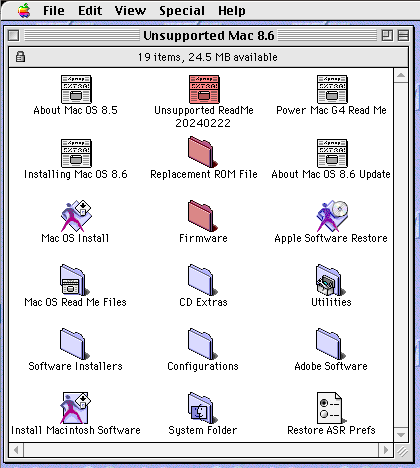
  • I messed up the order of the icons on the CD by accidentally clicking “Clean Up” when I didn’t mean to.

I have tested on a Pismo and on a GigaE G4, but would appreciate feedback on what other machines this disc works with. This disc isn’t a magic bullet – this will not work on a G5, or a Plus, see the thread linked above for OpenFirmware hacks to get 8.6 running on a QuickSilver or MDD, but that won’t work right out the box, so really only play with this if you have a Pismo, early TiBook, G3 iBook, Graphite G4, G3 iMac or Cube.

Issue 2 – 20240222

Following on from the above, I decided to make a few small changes. In addition to the above, I…

  • Added an updated (from Mac OS 9.2.2) version of the ATI drivers to the Installer and Restore Image.
  • Ensured that a newer version of the FireWire and Iomega Zip extensions (again from Mac OS 9.2.2) are installed if the selected option includes them.
  • Ensured that the updated extensions which the original installer only installs for the “PowerPC G4” are always installed, for example on a Pismo.
  • Deleted the Power Mac G4 ReadMe from the Restore Image.
  • Added a date to the top level of the CD, to assist with comparing versions.
  • Fixed the restore image by running the “Scan Image for ASR” script on it.

https://elephantandchicken.co.uk/downloads/CDImages/Mac_OS_8.6_Unsupported_G3_G4-iss2.zip

My hosting service isn’t great sorry. People in the Americas might find the connection drops. All I can say is sorry, but if you keep trying it eventually should complete. The download is approximately 425MB compressed.

Consider the software to be experimental. It might not work, but if it does, that is excellent news.

Notes on Compatibility

LightBulbFun and others have noted some compatibility issues.

  • To boot from the CD, the Macintosh must have a G3, 7400 or 7410 processor. Some newer G4 based systems can be booted, but require the cpu-pvr property is overwritten to spoof a 7400 processor. See details below.
  • Best results are generally achieved with an ATI card with a full ROM including an NDVR for classic Mac OS. This potentially excludes Snow iBooks and iMacs from compatibility.
  • When spoofing cpu-pvr, this CD still will not work with FW800 G4 MDDs.
  • On some machines, only the ATA66 bus will be recognised.
  • Ensure your Macintosh’s firmware is up to date.
  • Sometimes on the Pismo it is not possible to fully boot from the CD and the computer powers down when it tries to load the desktop.

Running Mac OS 8.6 on Unsupported Processors

To boot a late model Digital Audio, QuickSilver, or FW400 MDD G4, power on your computer while holding Cmd+Opt+P+R on the keyboard. When you see a black on white command prompt, enter the following commands :

dev /cpus/PowerPC,G4
.properties
000c0207 encode-int " cpu-version" property
mac-boot

If you are intending to boot from the CD, substitute “boot cd:,\\:tbxi” instead of “mac-boot”.

Compatibility Matrix

The Unsupported Mac OS 8.6 disc image has been tested on the following machines, with results as shown.

Macintosh ModelCD Image VersionInstaller CompatibilityRestore CompatibilityComments
Power Macintosh G4 “Gigabit Ethernet” 500MPIssue 2YesYes
PowerBook G3 “Pismo” 400MHzIssue 2YesYesUnexpected shutdown when booting from CD once
iBook G4 800MHzIssue 2NoNoCan’t boot, even with patches to model, compatible and cpu-pvr

Creating a Disc Image of a Classic Mac OS Bootable CD

Creating a Disc Image of a Classic Mac OS Bootable CD

The most important thing when making bootable disc images is to test them. After you create your disc image file and before you upload it anywhere, make sure you burn it back to a CD and test it On Real Hardware. If you do not have an appropriate vintage computer, speak to a friend that does. There are so many mistakes that it is possible to make that in a recent review, approximately one third of images uploaded to an archive page had been rendered un-bootable in some way. While testing takes a little time, it is nothing compared to the time a bad image wastes for dozens of users downloading it, to say nothing of the frustration it causes new users who may not have the experience to realise what the issue is.

NOTE – If your source CD contains true multimedia (for example, data and CD Audio, like many game CDs from the 90s), you very likely will need to create a bin + cue image of the source. I’m aware that a lot of people don’t like these, but sadly, there is no alternative that I know of. Genuinely, bin+cue isn’t a superfluous format designed to annoy you, it has a specific purpose and some CDs can not be properly burnt to new discs without it.

Classic Mac OS

Toast

Warning, this method likely very slightly modifies the CD, but other methods, using other options within Toast, will significantly modify the original content of the CD, rendering them less useful or even unbootable on any system, so this is the best you’re going to get! Do not use the “Mac Volume” option!

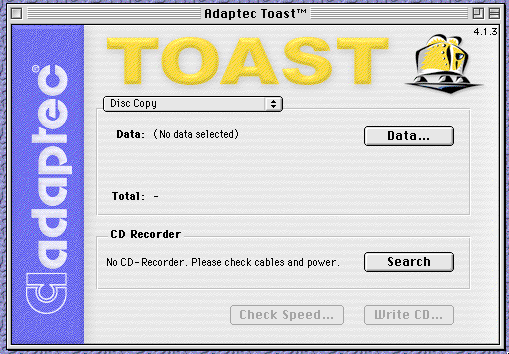
Launch a copy of Toast in Classic Mac OS, I’m using Toast 4.1.3, running on Mac OS 7.5.5 as an example.

Select “Disc Copy” as the operation type in the window. Then click the “Data…” button and select the disc you want to copy.

From the File Menu, select “Save as Disc Image…”. Save the file, conventionally as a “.toast”, but this file can actually be treated as a “.iso” file by many good CD burning programs.

Current macOS

NOTE – You will need an external optical drive as recent Macs do not come with a built in optical drive.

With a GUI

Disk Utility

Warning, this method likely very slightly modifies the CD. If a better alternative method is known, please propose it and I will add it here.

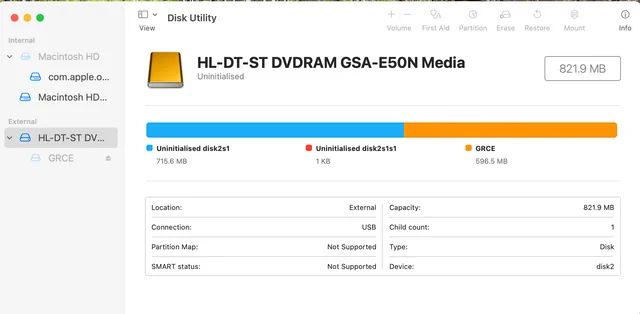
Launch Disk Utility, select the disc (not the partition – you must select the top level of the device you are trying to copy). Then select “Image From <device name>…” from the File menu.

Under the “Format” popup menu, select “DVD/CD Master” and ensure that no encryption is applied. Navigate to where you want to save, enter an appropriate file name and click save.

The resultant “.cdr” file can actually be treated as an “.iso” and can be renamed and burnt with many good CD burning programs.

AARU

I am not familiar with this software, but it can apparently also produce a good disc image.

https://www.aaru.app/#/

With the Command Line

dd

To save a disc image of your CD to your desktop, first you need to work out what the Operating System calls your CD Drive. To do this, launch Disk Utility, and click on the optical drive top level.

This will display some information about the drive, including, as shown above, in the lower right hand corner “Device”, which is in the example given “disk2”. This is your Device Name.

Alternatively, this information can be obtained by typing “diskutil list” (without the quotation marks) and pressing enter in a Terminal window and identifying the optical drive by its description. There will usually be an entry for “disk#” where # is a number, and then a number of additional entries with the same name, followed by “s#”, again where # is a number. Each of these additional entries are partitions on the disk. What we want is the top level name, so the one in the format “disk#”. This is your Device Name.

In a Terminal window, type “cd ~/Desktop” (without the quotation marks) and press enter. This will change the current directory to the desktop folder of the current user. Then, very carefully (making sure that there isn’t already a file called “cdimage.iso” on your desktop – if there is, you can change the filename in the following command (it is generally best to avoid spaces to keep things simple)), using the Device Name obtained above in place of the text “<disk#>”, enter the following command :

dd if=/dev/<disk#> of=./cdimage.iso bs=2048

This command will copy the “if” (input file) to the “of” (output file) with a “bs” (block size) of 2048 bytes. This should give us a nice pure and unadulterated disc image of the CD.

dumptoiso

I’ve not tested this script, but the following has been designed to simplify the process with dd :

https://macintoshgarden.org/apps/dumptoiso-a-script-os-x-dump-cds-and-dvds-iso-files

Older Versions of Mac OS X

In older versions of Mac OS X, it is possible to use methods similar to the “Toast” instructions given for Classic Mac OS, or for “Disk Utility” for current macOS, with minor interface differences.

Command line instructions remain effectively identical to current macOS instructions above when using dd in older versions of Mac OS X.

dumptoiso, linked above, also works back to 10.3, if not earlier.

Linux

With a GUI

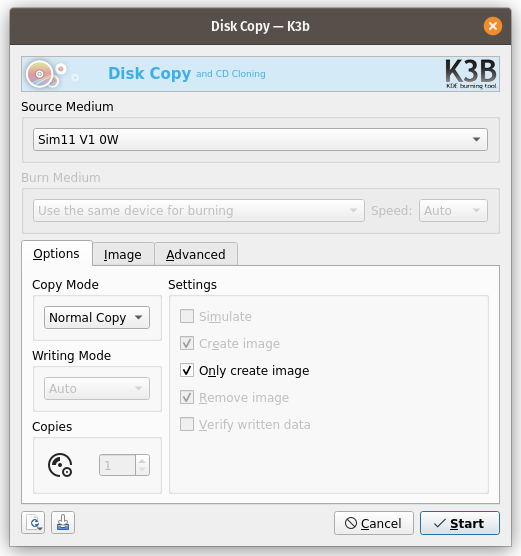
Install the application “K3b”.

Launch and select the “Copy Medium…” option from the “Tools” menu.

Verify the correct drive is selected in the “Source Medium” popup menu, make sure “Copy Mode” is set to “Normal Copy”, and check the “Only create image” checkbox.

Switch to the “Image” tab and enter a filename and path.

Click “Start”.

You should now have a disc image of your CD saved at the location you selected. When burning Mac HFS images from K3b it will complain that it does not recognise the format. Don’t worry, just dismiss the dialogue box and continue.

With the Command Line

To save a disc image of your CD to your desktop, first you need to work out what the Operating System calls your CD Drive. To do this, you can launch you disk management application such as gparted or “Disks”.

This will display some information about the optical drive, including the “Device” path, which on my computer is “/dev/sr0”. This varies more on linux than on other platforms, depending on the flavour of linux you run. This is your Device Name.

Alternatively, this information can be obtained by typing “df -h” (without the quotation marks) and pressing enter in a Terminal window and identifying the optical drive by its description. If there are multiple partitions mounted, what we want is the top level name. This is your Device Name.

In a Terminal window, navigate to the location you want to save your disc image. Then, very carefully (making sure that there isn’t already a file called “cdimage.iso” at the location – if there is, you can change the filename in the following command), using the Device Name obtained above in place of the text “<device>”, enter the following command :

dd if=/dev/<device> of=./cdimage.iso bs=2048

This command will copy the “if” (input file) to the “of” (output file) with a “bs” (block size) of 2048 bytes. This should give us a nice pure and unadulterated disc image of the CD.

Windows

ImgBurn

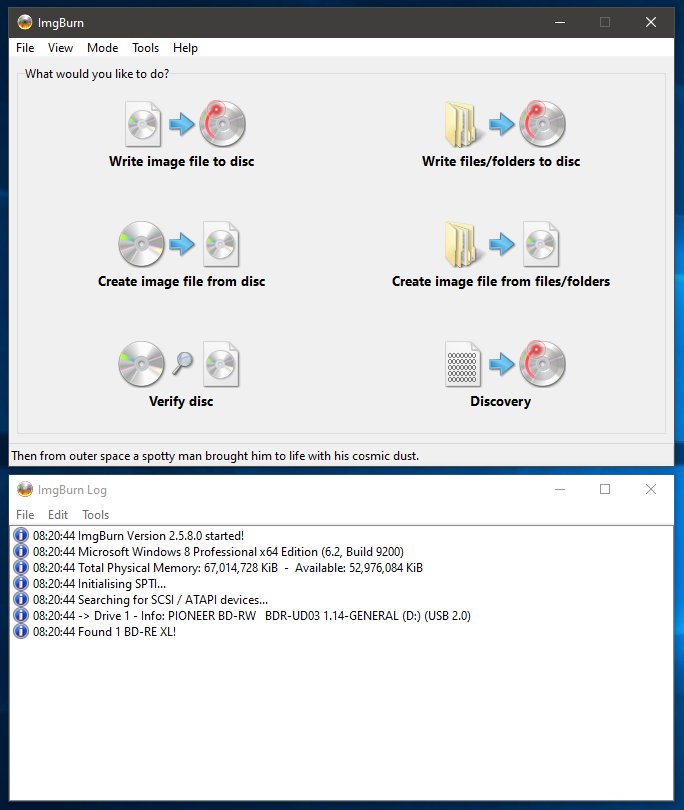
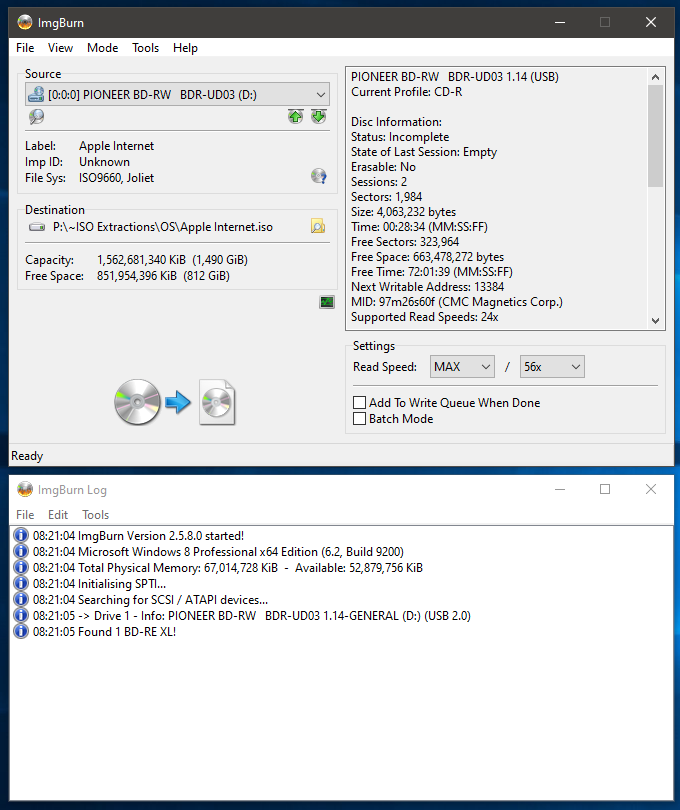
After installing ImgBurn, launch the application and select “Create Image file from Disc”.

Insert the disc you want to copy and select a destination.

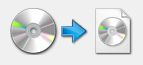
Click on the CD to file pictograph / button (that doesn’t look one bit like a button, and shown below for clarity) and ImgBurn will create your disc image.

The display will change to show progress and a message appears on screen once the process has completed.